Help and support text written over blue background.
Help & Frequently Asked Questions
Quick answers for activation, license info, PC reset (every 3 days), and support tickets.
Q&A Helper
Select your pre made Question to filter exact answers below.
Compatibility & Requirements
What devices is NCK Online Tool compatible with?
- Alcatel
- Apple
- HTC
- Huawei
- Infinix
- iTel
- LG
- Motorola
- OPPO
- OnePlus
- Realme
- Samsung
- Tecno
- Vivo
- Xiaomi
- ZTE
What devices is NCK Online Tool compatible with?
NCK Online Tool supports a wide range of smartphones and tablets, including Apple, Samsung, Xiaomi, OPPO, Vivo, HTC, LG, Motorola, ZTE, Alcatel, and Huawei. Supported models depend on the specific module and current updates.
Download & Installation
How do I download and install NCK Online Tool?
- Download the software from the official NCK Online Tool website.
- Run the installer and follow the on-screen instructions.
- After installation, launch the required module and activate it using your license key.
How do I download and install NCK Online Tool?
Download the software from the official NCK Online Tool website or from your authorized reseller. Run the installer and follow the on-screen instructions. After installation, launch the required module and activate it using your license key.
What is the password for setup files?
NckTeam
What is the password for setup files?
NckTeam
Licensing & Usage
Can I use NCK Online Tool on more than one PC?
Yes, but only one PC at a time. You can change your licensed PC using the built-in PC Reset system.
Can I use NCK Online Tool on more than one PC?
Yes, but only one PC at a time. You can change your licensed PC using the built-in PC Reset system.
How often can I change my licensed PC?
You may perform a self PC reset once every 3 days using the automated reset system.
Do I need to buy each module separately?
No. One active license grants access to all available modules on the download page, including future updates while your license is active.
Do I need to buy each module separately?
No. One active license grants access to all available modules on the download page, including future updates while your license is active.
Can I renew my license?
Licenses cannot be extended. Once expired, you must purchase a new license.
Can I renew my license?
Licenses cannot be extended. Once expired, you must purchase a new license.
PC Reset (Change Computer)
How often can I change my licensed PC?
You may perform a self PC reset once every 3 days using the automated reset system.
How do I reset my license – (Software)?
- NCK ONLINE TOOL — HOW TO RESET YOUR LICENSE. Use this method when you want to deactivate your current PC and activate the license on another computer.STEP 1 — OPEN NCK ONLINE TOOL Run any NCK Online Tool module on the computer where the license is currently active. STEP 2 — OPEN THE LICENSE TAB or Help & Info in some other modules Press: Uninstall license from PC Depending on the software version, the button may also appear as: Reset PC Account STEP 3 — CONFIRM THE RESET The software will automatically send your license details to server. STEP 4 — WAIT FOR THE SERVER REPLY Do not close the software while the request is being processed. A successful request will show: Success: 1 Result: RESET SUCCESS Message: License deactivated successfully. Your current PC license is now deactivated. You can then install and activate NCK Online Tool on another computer. POSSIBLE MESSAGES 1. RESET COMPLETED SUCCESSFULLY Success: 1 Result: RESET SUCCESS Message: License deactivated successfully. This means the current PC was removed successfully. 2. RESET COOLDOWN Success: 0 RESET COOLDOWN try after 3 days Reset already requested. Try again after 3 days. A reset was already submitted recently. Wait until the displayed retry date before trying again. 3. LICENSE IS BLOCKED Success: 0 Result: LICENSE BLOCKED Message: This license is blocked. Contact support for assistance. 4. INVALID RESET REQUEST Success: 0 Result: RESET REJECTED Message: Reset service rejected the request. Close the software, open it again, and generate a new reset request. Do not reuse an old reset code. IMPORTANT NOTES - Reset the license only from the PC where it is currently active. - Internet access is required. - Do not close the software during the reset. - Do not press the reset button repeatedly. - A new reset code is generated each time. - The license serial number remains the same. - The reset cooldown is currently 3 days. - The reset request is sent securely over HTTPS. FOR SUPPORT Email: support@nckonlinetool.com Forum: https://nckforum.com/forum/index.php?forums/nck-online-tool.11/ Client Portal: https://nckonlinetool.com/server/client_portal/login.php
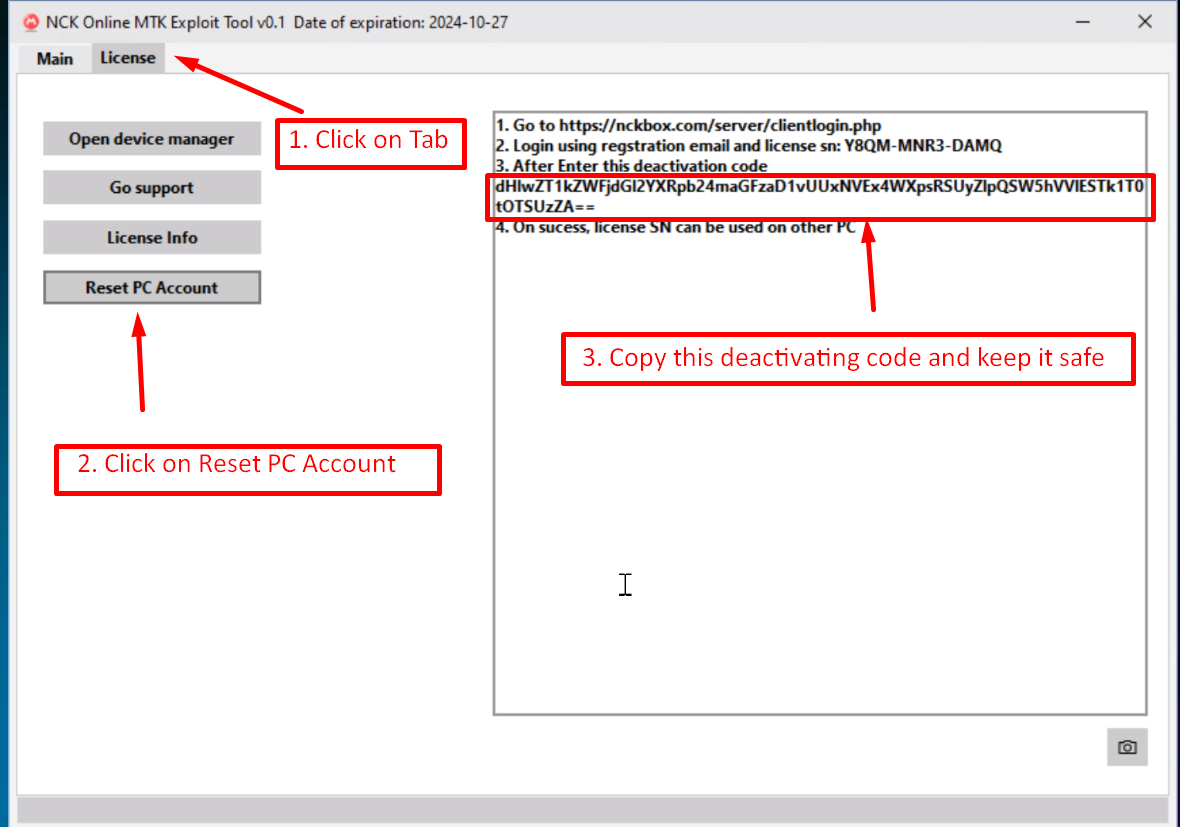
How to reset license to use another PC – Step 1 (Software)
- Open any NCK Online Tool module.
- Go to License → Reset PC Account.
- Copy the displayed reset/deactivation code and keep it safe.
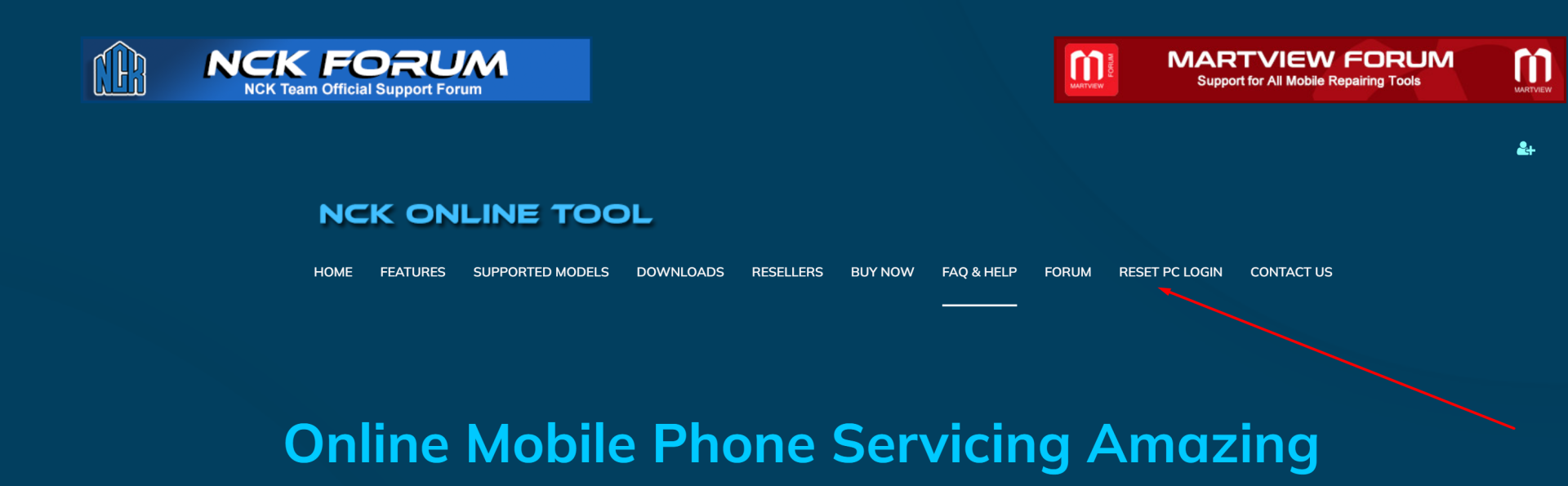
How to reset license to use another PC – Step 2 (Open Reset PC Login)
- Go to the NCK Online Tool website.
- Click Reset PC Login from the menu.
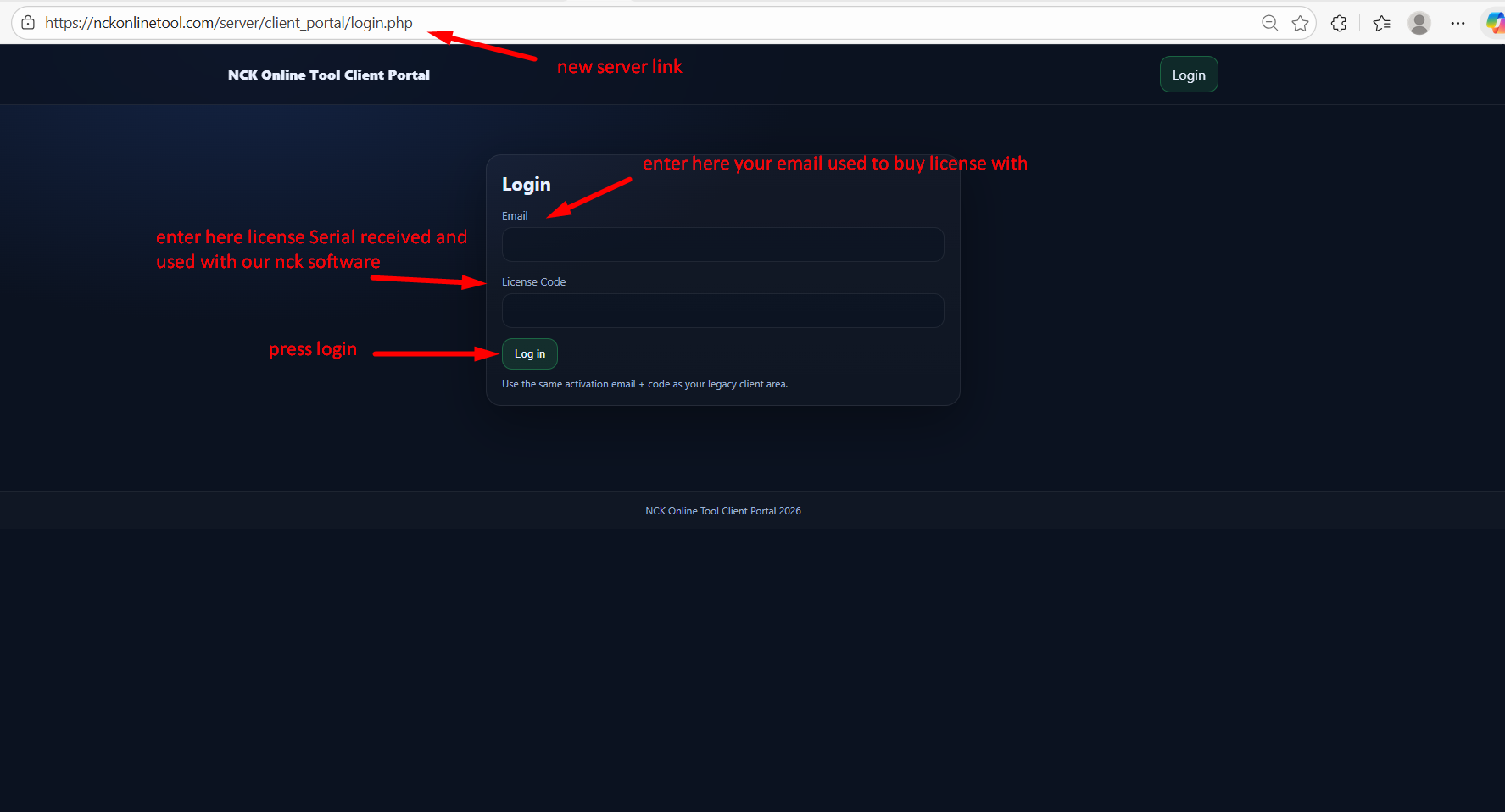
How to reset license to use another PC – Step 3 (Login)
- Open the Client Portal login page.
- Enter your registered email used to buy the license.
- Enter your license code.
- Click Login.
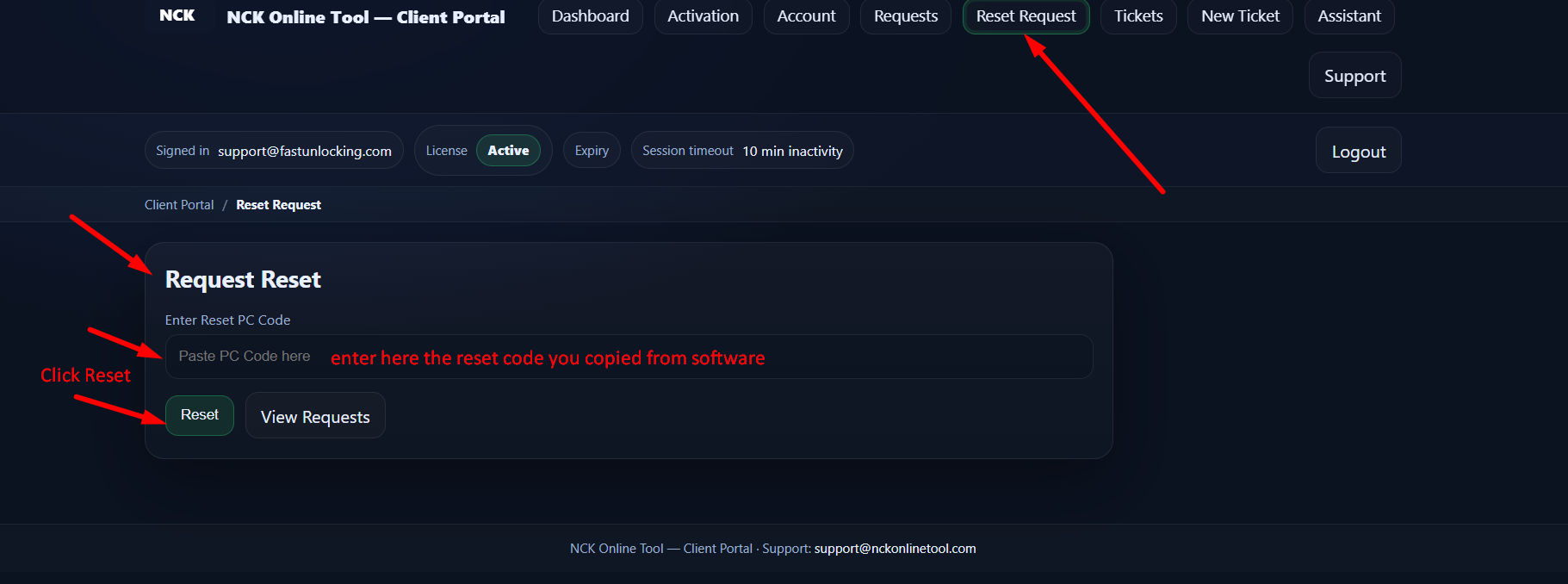
How to reset license to use another PC – Step 4 (Submit Reset)
- Click Reset Request.
- Paste the reset/deactivation code you copied from the software.
- Click Reset and wait for the success message.
Note: Your next self reset is allowed after 3 days.
How many times can I request manual PC reset via tickets?
Manual resets via tickets are limited to 1 time per month. Self-service resets are available every 3 days.
Resellers & License Delivery
I bought a license from a reseller. Can I get my license code from NCK Team?
No. Licenses must be provided by the reseller you paid. We cannot issue licenses purchased through third parties or verify reseller transactions.
I bought a license from a reseller. Can I get my license code from NCK Team?
No. Licenses must be provided by the reseller you paid. We cannot issue licenses purchased through third parties or verify reseller transactions.
Activation & License Information
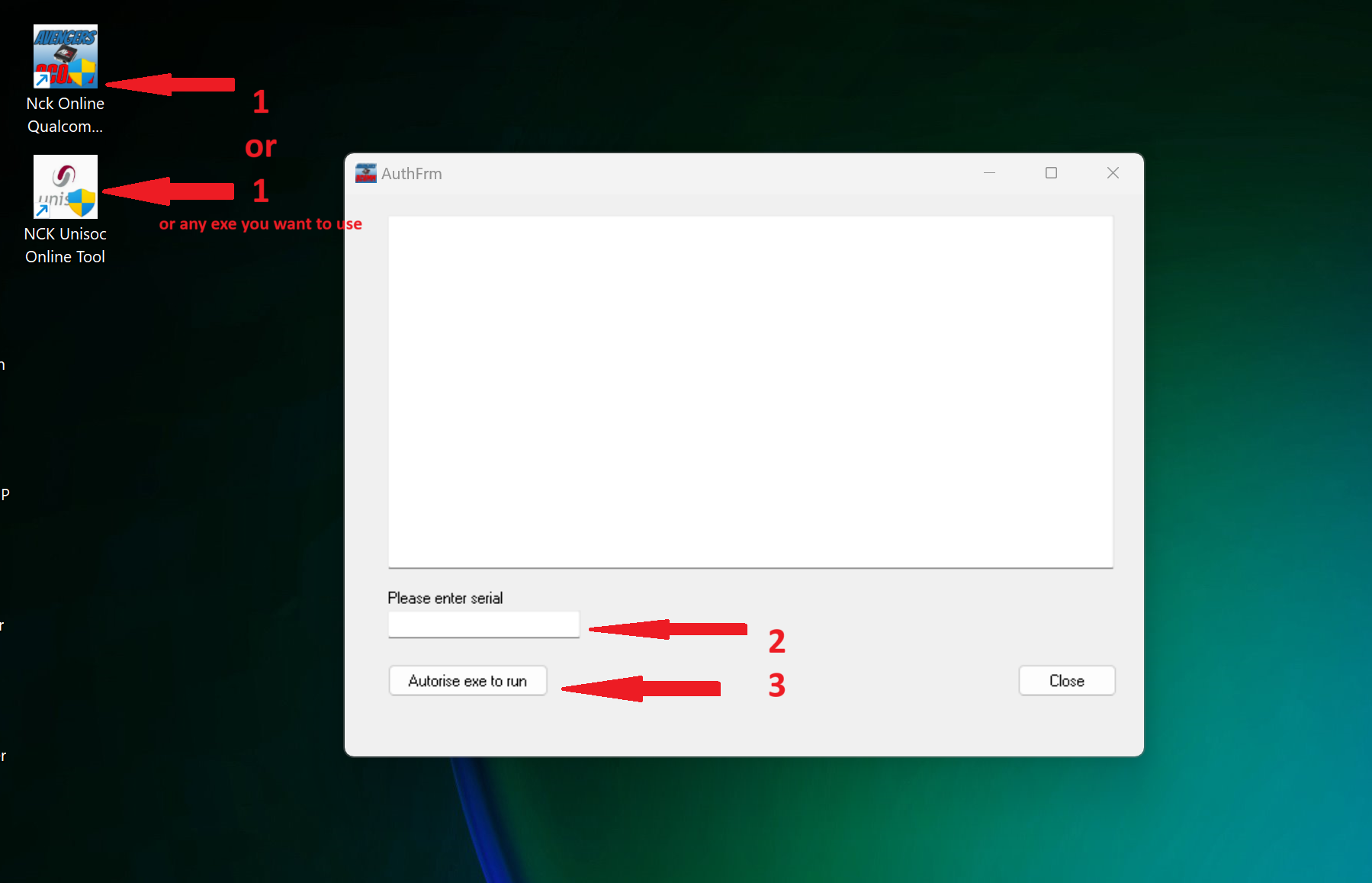
How do I activate my license key?
- Install and launch the required NCK Online module.
- Navigate to the License / Serial Number section.
- Paste the license key received from your reseller.
- Click Authorize EXE.
- The software will activate and is ready for use.
How do I activate my license key?
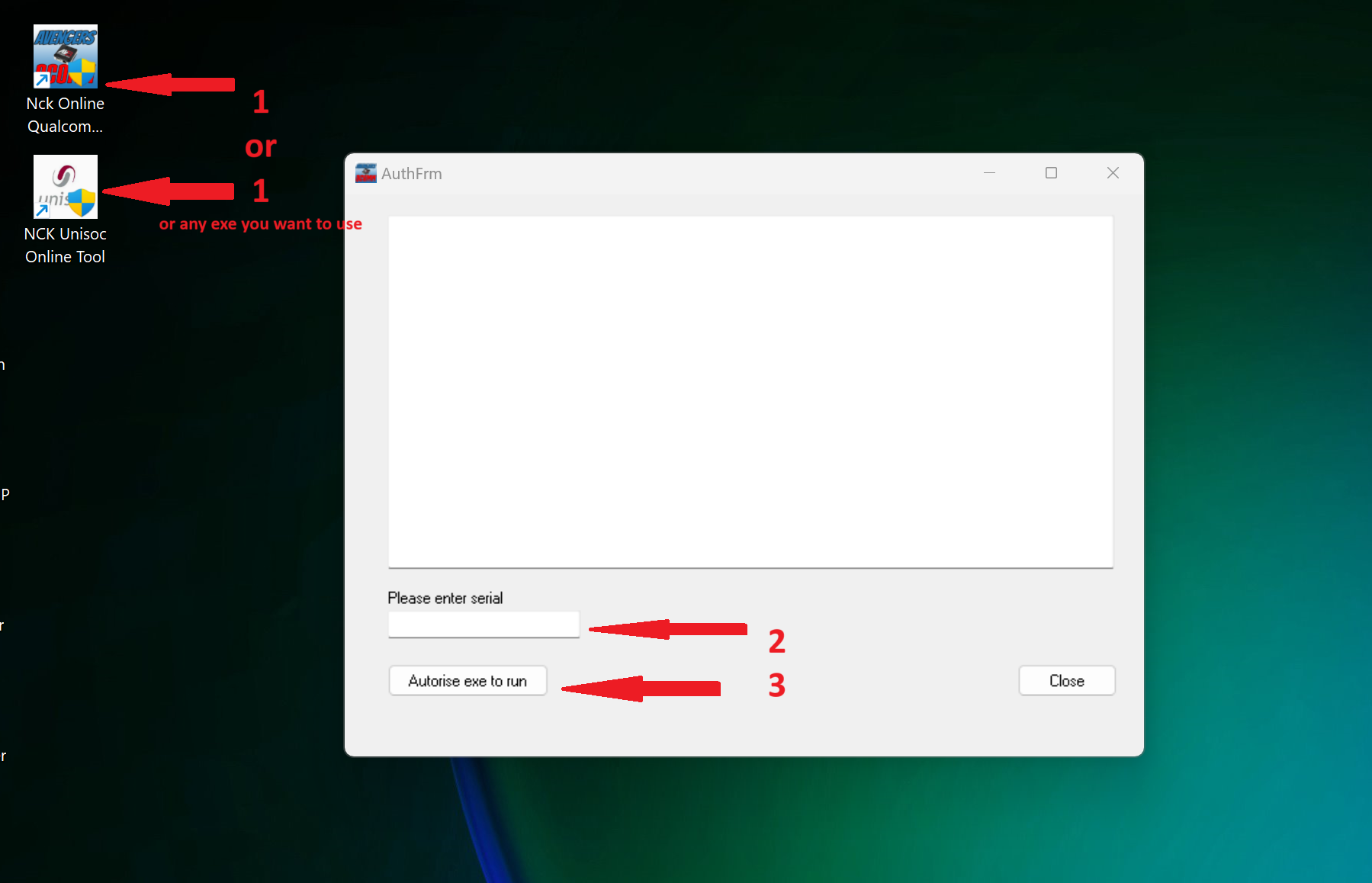
- Install and launch the required NCK Online module.
- Navigate to the License / Serial Number section.
- Paste the license key received from your reseller.
- Click Authorize EXE.
- The software will activate and is ready for use.
How can I check my license details?
- Open any activated module.
- Go to the License tab.
- Click License Info.
- View your expiry date, registered email, name, and license key.
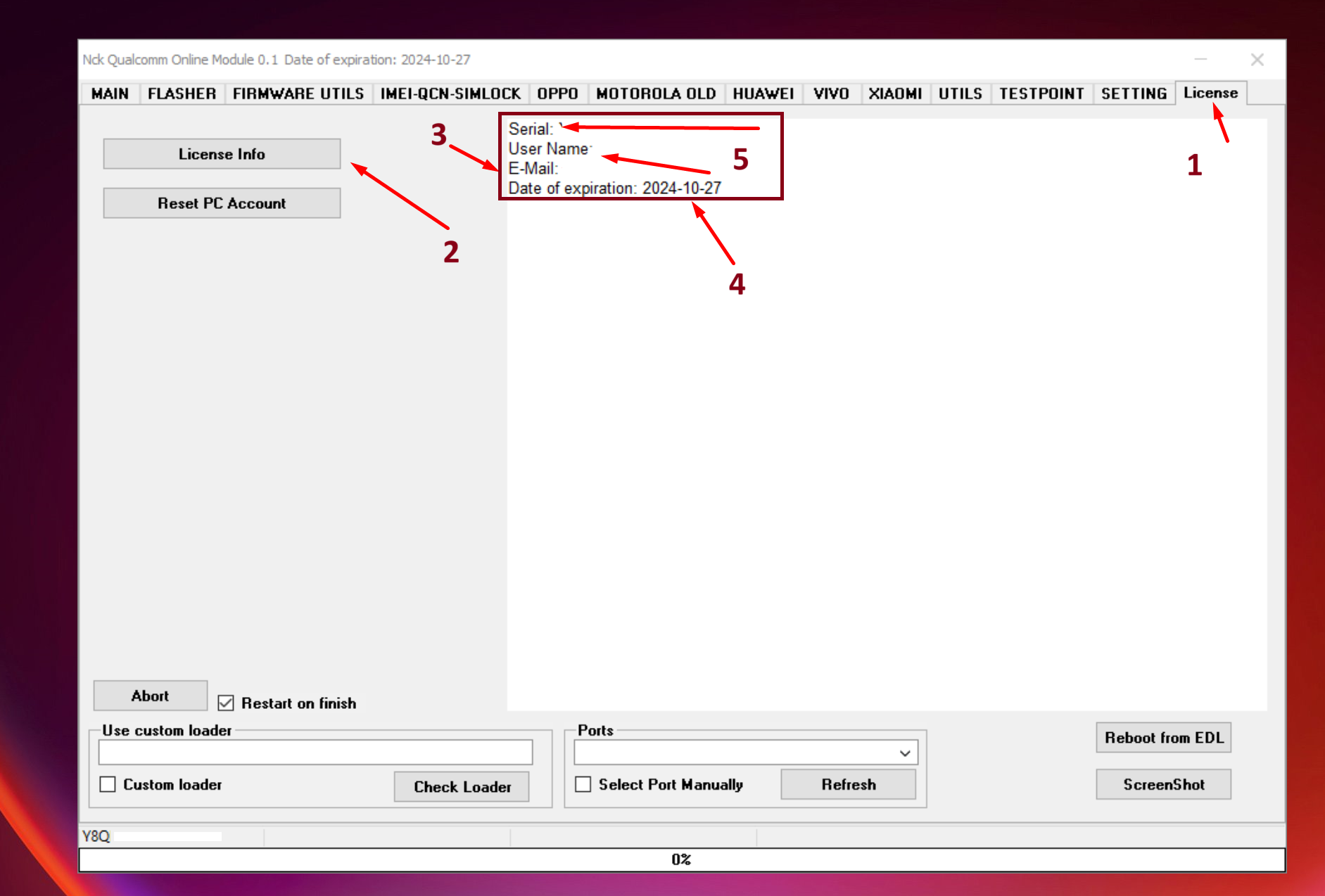
How can I check my license details?
- Open any activated module.
- Go to the License tab.
- Click License Info.
- View your expiry date, registered email, name, and license key.
How often can I request manual PC reset via tickets?
Manual resets via tickets are limited to once per month. Self-service resets are available every 3 days, which you can do using NCK Online Tool software - License TAB - Reset PC Activation
How long does license activation take?
Activation is instant after payment confirmation. You can start using the software immediately.
How long does license activation take?
Activation is instant after payment confirmation. You can start using the software immediately.
Support & Tickets
How do I submit a support ticket for MANUAL RESET?
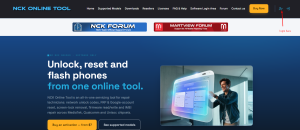
Go to the Client Login page.
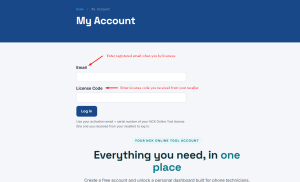
Log in using your registered email and license key.
Open Tickets to view or submit requests.
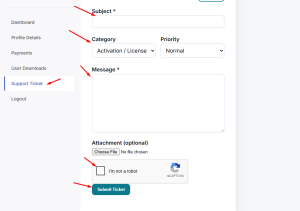
Enter a clear subject: Manual Pc Reset Request.
Provide a detailed explanation: Reason of Request + i acknowledge that this is allowed one time per month regardless to reasons.
Submit and allow up to 24 hours for a response.
How do I submit a support ticket?
- Go to the Client Login page: https://nckonlinetool.com/server/client_portal/login.php
- Log in using your registered email and license key.
- Open Tickets to view or submit requests.
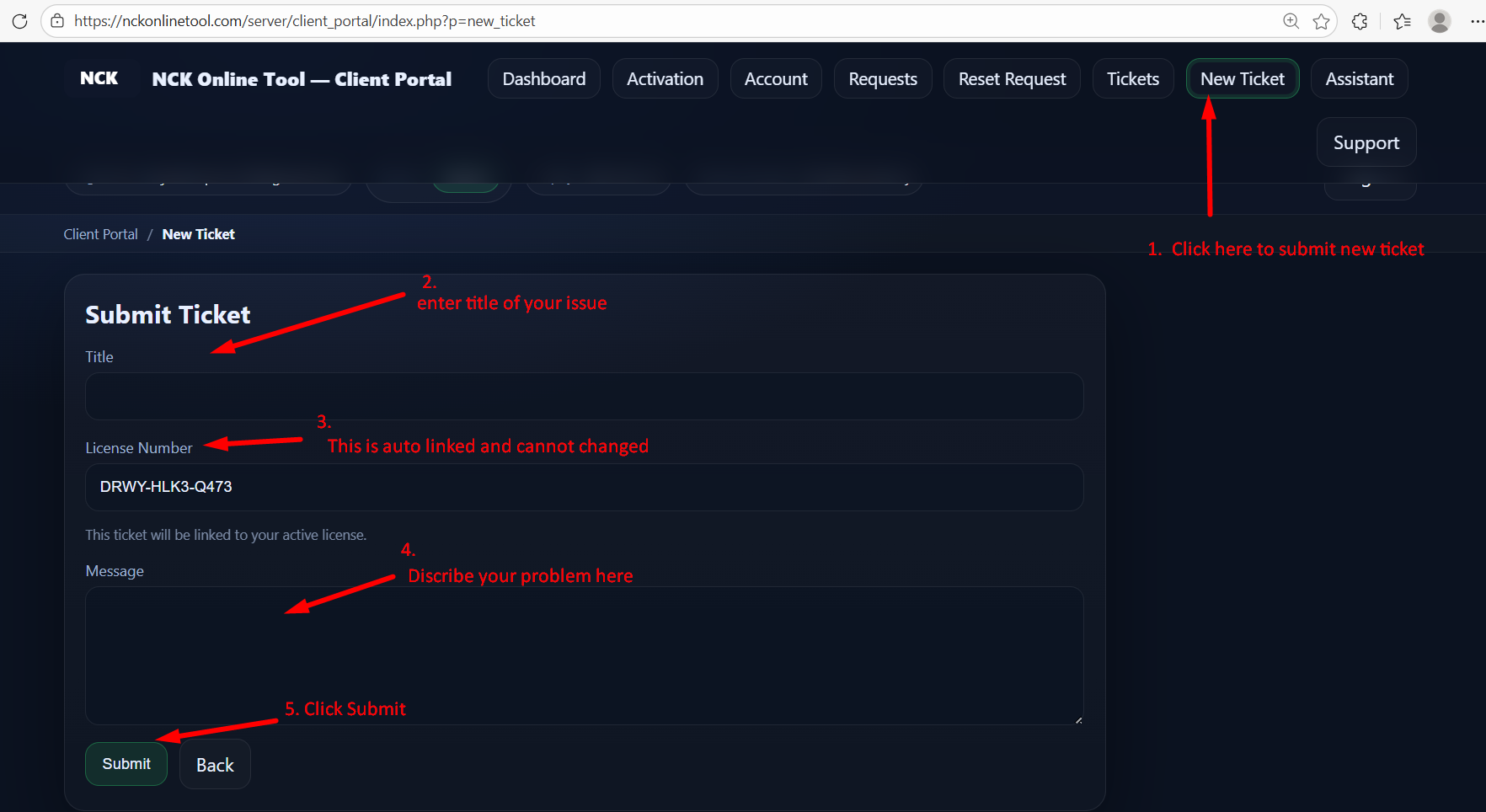
How do I create a new ticket?
- Open New Ticket.
- Enter a clear subject.
- Write a detailed message (include device/model + exact error).
- Click Submit.
Where do I receive support?
Sales support is provided via Telegram. Technical support is provided via the official ticket system and support forum.
Where do I receive support?
Sales support is provided via Telegram. Technical support is provided via the official ticket system and support forum.
Choosing the Right Product
Should I choose NCK Online Tool or NCK Dongle/Box?
NCK Online Tool: Software-based license for individual technicians.
NCK Dongle / Box: Hardware-based solution for service centers with multiple users.
Should I choose NCK Online Tool or NCK Dongle/Box?
NCK Online Tool: Software-based license for individual technicians.
NCK Dongle / Box: Hardware-based solution for service centers with multiple users.
How to use iOS Module
How to make Read Activation Email ID Ramdisk Mode PWNDFU
How to use Winra1n to PWNDFU
How to Activate Passcode using NCK iOS Tool
NCK How to Boot iPhone-iPad-on-iOS 16.6 above
How to do backup Activation using IOS-TOOL
How to use Hello Bypass option in NCK-IOS-Tool
Unisoc Module help
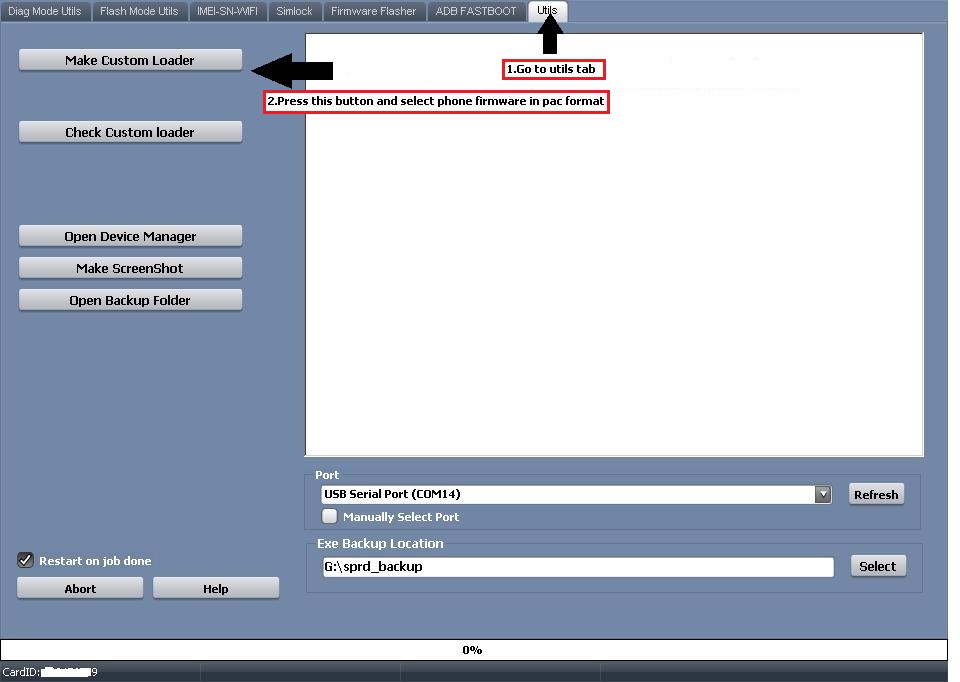
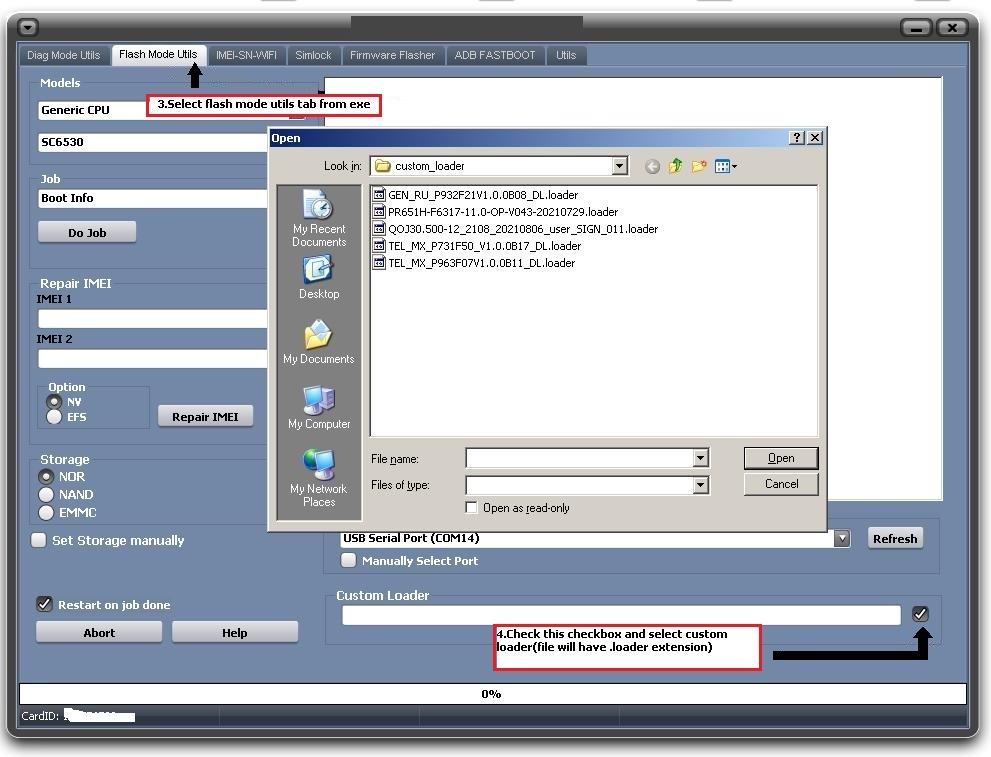
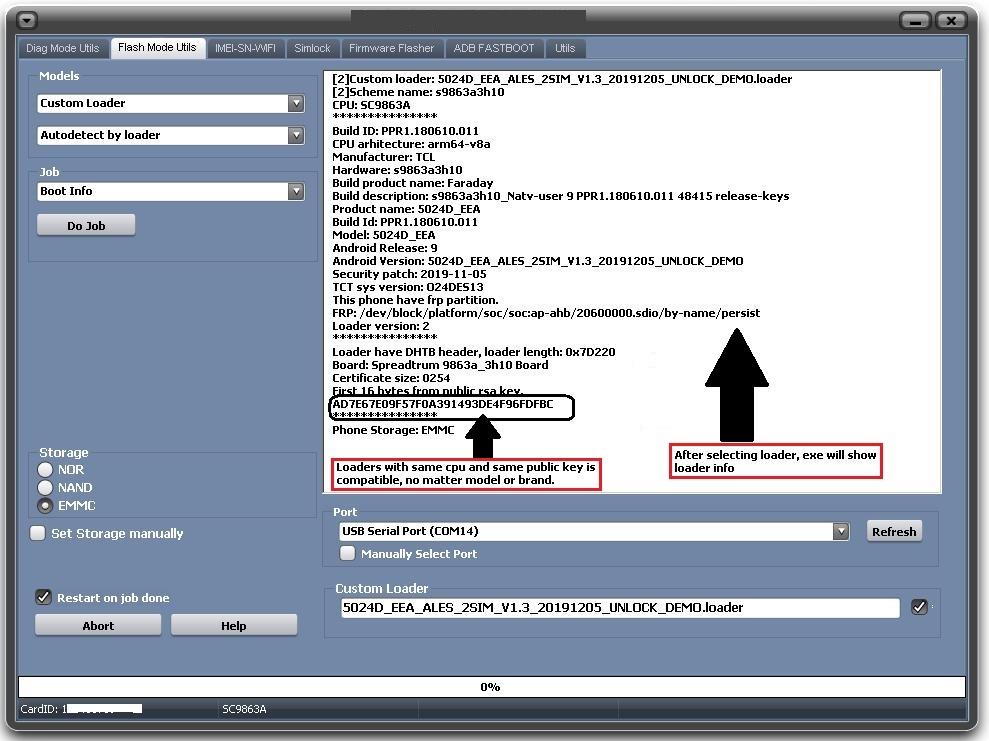
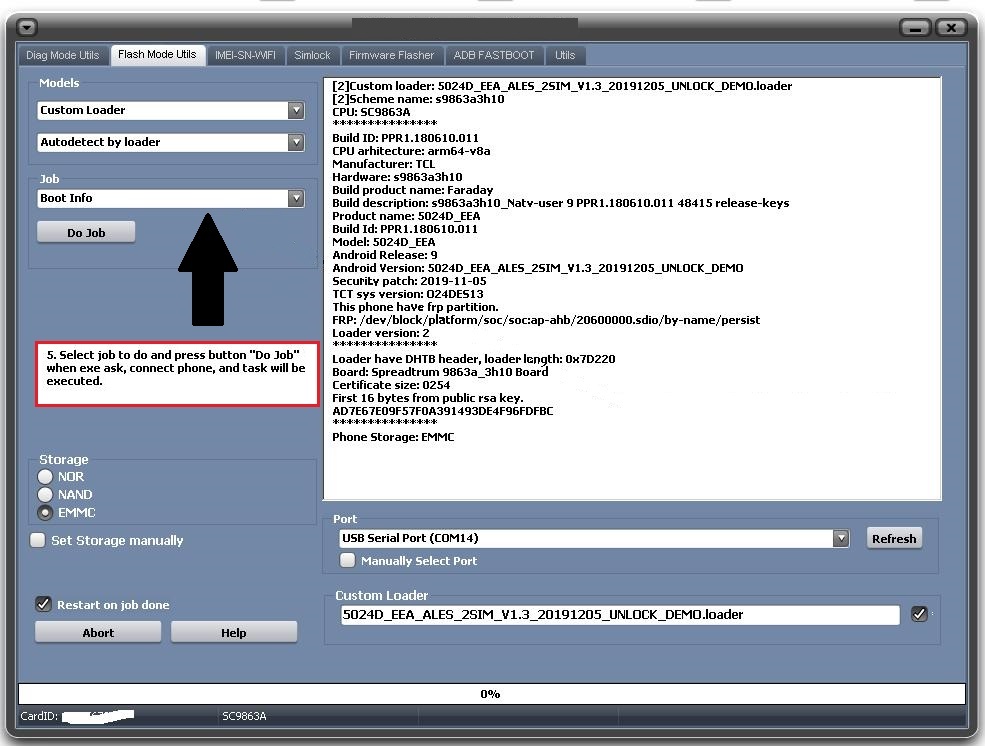
How to use Custom loader in Spreadtrum unisoc Module
Still need help?
If you did not find your answer, open a support ticket and include your registered email, license code, a screenshot, and the exact error message.